A slider for every app
Each app that plays sound gets its own row in the menu, with a volume slider and a mute button. Turn one app down and the rest stay where they are.
 Mix-A-Little
 puts a volume slider for every app in your menu bar. Turn the call up, the music down, and mute the app that keeps pinging.
Example sound, one peak for each app. Drag a slider, or mute an app.
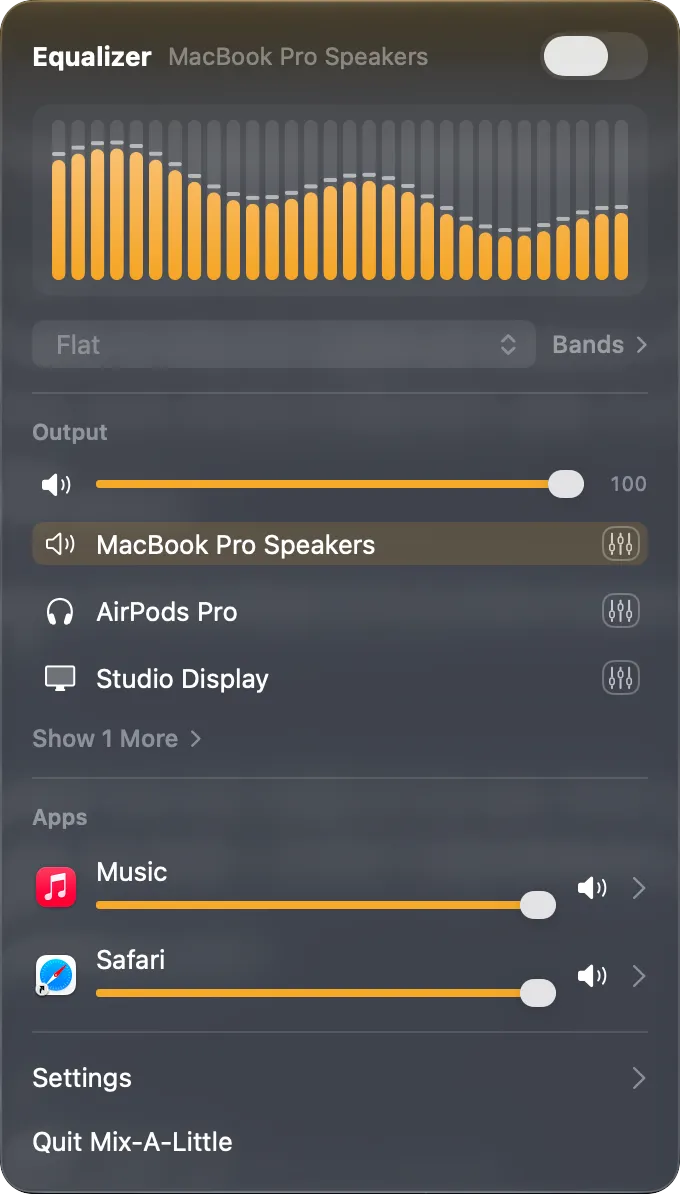
Each app that plays sound gets its own row in the menu, with a volume slider and a mute button. Turn one app down and the rest stay where they are.
Speakers, headphones and AirPods each have their own volume, mute and 10-band equalizer from 32 Hz to 16 kHz, with presets. Switch outputs and the right sound comes with them.
A live spectrum at the top of the menu shows the sound as it plays, in the style you choose.
Turn on Open at Login and the mixer is in your menu bar every morning. Your settings save on their own.
Mix-A-Little adds seven actions to the Shortcuts app. Put them in your own shortcuts, or ask Siri to run them.